Azure AI Foundry Agents
Call Azure AI Foundry Agents in the OpenAI Request/Response format.
| Property | Details |
|---|---|
| Description | Azure AI Foundry Agents provides hosted agent runtimes that can execute agentic workflows with foundation models, tools, and code interpreters. |
| Provider Route on LiteLLM | azure_ai/agents/{AGENT_ID} |
| Provider Doc | Azure AI Foundry Agents ↗ |
Authentication
Azure AI Foundry Agents require Azure AD authentication (not API keys). You can authenticate using:
Option 1: Service Principal (Recommended for Production)
Set these environment variables:
export AZURE_TENANT_ID="your-tenant-id"
export AZURE_CLIENT_ID="your-client-id"
export AZURE_CLIENT_SECRET="your-client-secret"
LiteLLM will automatically obtain an Azure AD token using these credentials.
Option 2: Azure AD Token (Manual)
Pass a token directly via api_key:
# Get token via Azure CLI
az account get-access-token --resource "https://ai.azure.com" --query accessToken -o tsv
Required Azure Role
Your Service Principal or user must have the Azure AI Developer or Azure AI User role on your Azure AI Foundry project.
To assign via Azure CLI:
az role assignment create \
  --assignee-object-id "<service-principal-object-id>" \
  --assignee-principal-type "ServicePrincipal" \
  --role "Azure AI Developer" \
  --scope "/subscriptions/<sub>/resourceGroups/<rg>/providers/Microsoft.CognitiveServices/accounts/<resource>"
Or add via Azure AI Foundry Portal → Your Project → Project users → + New user.
Quick Start
Model Format to LiteLLM
To call an Azure AI Foundry Agent through LiteLLM, use the following model format.
Here the model=azure_ai/agents/ tells LiteLLM to call the Azure AI Foundry Agent Service API.
azure_ai/agents/{AGENT_ID}
Example:
azure_ai/agents/asst_abc123
You can find the Agent ID in your Azure AI Foundry portal under Agents.
LiteLLM Python SDK
import litellm

# Make a completion request to your Azure AI Foundry Agent
# Uses AZURE_TENANT_ID, AZURE_CLIENT_ID, AZURE_CLIENT_SECRET env vars for auth
response = litellm.completion(
    model="azure_ai/agents/asst_abc123",
    messages=[
        {
            "role": "user",
            "content": "Explain machine learning in simple terms"
        }
    ],
    api_base="https://your-resource.services.ai.azure.com/api/projects/your-project",
)

print(response.choices[0].message.content)
print(f"Usage: {response.usage}")
import litellm

# Stream responses from your Azure AI Foundry Agent
response = await litellm.acompletion(
    model="azure_ai/agents/asst_abc123",
    messages=[
        {
            "role": "user",
            "content": "What are the key principles of software architecture?"
        }
    ],
    api_base="https://your-resource.services.ai.azure.com/api/projects/your-project",
    stream=True,
)

async for chunk in response:
    if chunk.choices[0].delta.content:
        print(chunk.choices[0].delta.content, end="")
LiteLLM Proxy
1. Configure your model in config.yaml
- config.yaml
model_list:
  - model_name: azure-agent-1
    litellm_params:
      model: azure_ai/agents/asst_abc123
      api_base: https://your-resource.services.ai.azure.com/api/projects/your-project
      # Service Principal auth (recommended)
      tenant_id: os.environ/AZURE_TENANT_ID
      client_id: os.environ/AZURE_CLIENT_ID
      client_secret: os.environ/AZURE_CLIENT_SECRET

  - model_name: azure-agent-math-tutor
    litellm_params:
      model: azure_ai/agents/asst_def456
      api_base: https://your-resource.services.ai.azure.com/api/projects/your-project
      # Or pass Azure AD token directly
      api_key: os.environ/AZURE_AD_TOKEN
2. Start the LiteLLM Proxy
litellm --config config.yaml
3. Make requests to your Azure AI Foundry Agents
- Curl
- OpenAI Python SDK
curl http://localhost:4000/v1/chat/completions \
  -H "Content-Type: application/json" \
  -H "Authorization: Bearer $LITELLM_API_KEY" \
  -d '{
    "model": "azure-agent-1",
    "messages": [
      {
        "role": "user",
        "content": "Summarize the main benefits of cloud computing"
      }
    ]
  }'
curl http://localhost:4000/v1/chat/completions \
  -H "Content-Type: application/json" \
  -H "Authorization: Bearer $LITELLM_API_KEY" \
  -d '{
    "model": "azure-agent-math-tutor",
    "messages": [
      {
        "role": "user",
        "content": "What is 25 * 4?"
      }
    ],
    "stream": true
  }'
from openai import OpenAI

# Initialize client with your LiteLLM proxy URL
client = OpenAI(
    base_url="http://localhost:4000",
    api_key="your-litellm-api-key"
)

# Make a completion request to your Azure AI Foundry Agent
response = client.chat.completions.create(
    model="azure-agent-1",
    messages=[
      {
        "role": "user",
        "content": "What are best practices for API design?"
      }
    ]
)

print(response.choices[0].message.content)
from openai import OpenAI

client = OpenAI(
    base_url="http://localhost:4000",
    api_key="your-litellm-api-key"
)

# Stream Agent responses
stream = client.chat.completions.create(
    model="azure-agent-math-tutor",
    messages=[
      {
        "role": "user",
        "content": "Explain the Pythagorean theorem"
      }
    ],
    stream=True
)

for chunk in stream:
    if chunk.choices[0].delta.content is not None:
        print(chunk.choices[0].delta.content, end="")
Environment Variables
| Variable | Description |
|---|---|
AZURE_TENANT_ID | Azure AD tenant ID for Service Principal auth |
AZURE_CLIENT_ID | Application (client) ID of your Service Principal |
AZURE_CLIENT_SECRET | Client secret for your Service Principal |
export AZURE_TENANT_ID="your-tenant-id"
export AZURE_CLIENT_ID="your-client-id"
export AZURE_CLIENT_SECRET="your-client-secret"
Conversation Continuity (Thread Management)
Azure AI Foundry Agents use threads to maintain conversation context. LiteLLM automatically manages threads for you, but you can also pass an existing thread ID to continue a conversation.
import litellm

# First message creates a new thread
response1 = await litellm.acompletion(
    model="azure_ai/agents/asst_abc123",
    messages=[{"role": "user", "content": "My name is Alice"}],
    api_base="https://your-resource.services.ai.azure.com/api/projects/your-project",
)

# Get the thread_id from the response
thread_id = response1._hidden_params.get("thread_id")

# Continue the conversation using the same thread
response2 = await litellm.acompletion(
    model="azure_ai/agents/asst_abc123",
    messages=[{"role": "user", "content": "What's my name?"}],
    api_base="https://your-resource.services.ai.azure.com/api/projects/your-project",
    thread_id=thread_id,  # Pass the thread_id to continue conversation
)

print(response2.choices[0].message.content)  # Should mention "Alice"
Provider-specific Parameters
Azure AI Foundry Agents support additional parameters that can be passed to customize the agent invocation.
- SDK
- Proxy
from litellm import completion

response = litellm.completion(
    model="azure_ai/agents/asst_abc123",
    messages=[
        {
            "role": "user",
            "content": "Analyze this data and provide insights",
        }
    ],
    api_base="https://your-resource.services.ai.azure.com/api/projects/your-project",
    thread_id="thread_abc123",  # Optional: Continue existing conversation
    instructions="Be concise and focus on key insights",  # Optional: Override agent instructions
)
model_list:
  - model_name: azure-agent-analyst
    litellm_params:
      model: azure_ai/agents/asst_abc123
      api_base: https://your-resource.services.ai.azure.com/api/projects/your-project
      tenant_id: os.environ/AZURE_TENANT_ID
      client_id: os.environ/AZURE_CLIENT_ID
      client_secret: os.environ/AZURE_CLIENT_SECRET
      instructions: "Be concise and focus on key insights"
Available Parameters
| Parameter | Type | Description |
|---|---|---|
thread_id | string | Optional thread ID to continue an existing conversation |
instructions | string | Optional instructions to override the agent's default instructions for this run |
LiteLLM A2A Gateway
You can also connect to Azure AI Foundry Agents through LiteLLM's A2A (Agent-to-Agent) Gateway UI. This provides a visual way to register and test agents without writing code.
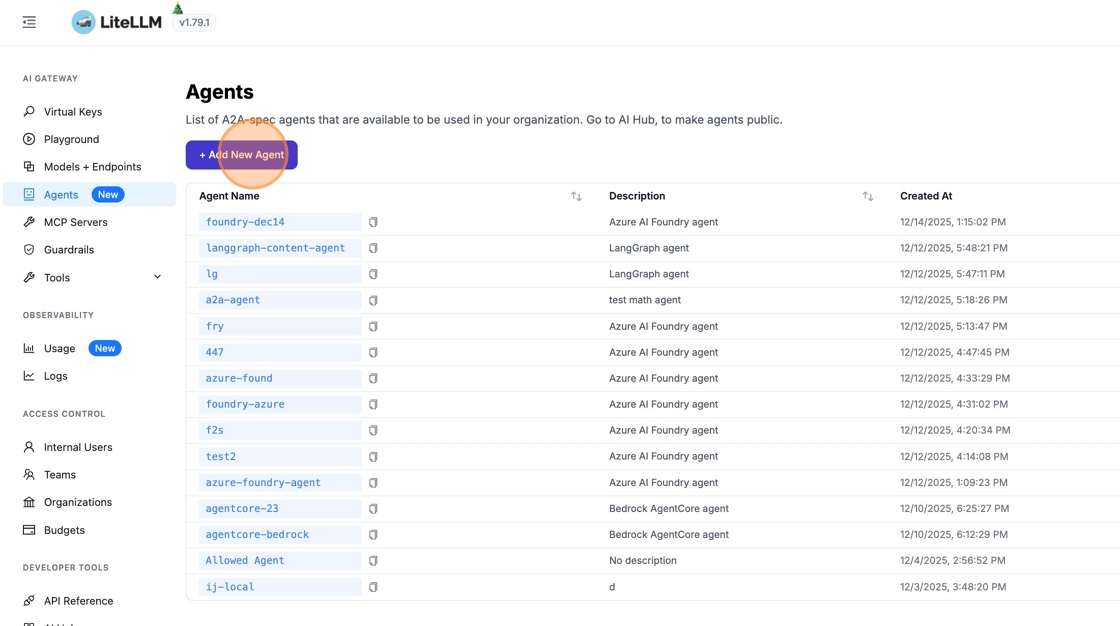
1. Navigate to Agents
From the sidebar, click "Agents" to open the agent management page, then click "+ Add New Agent".
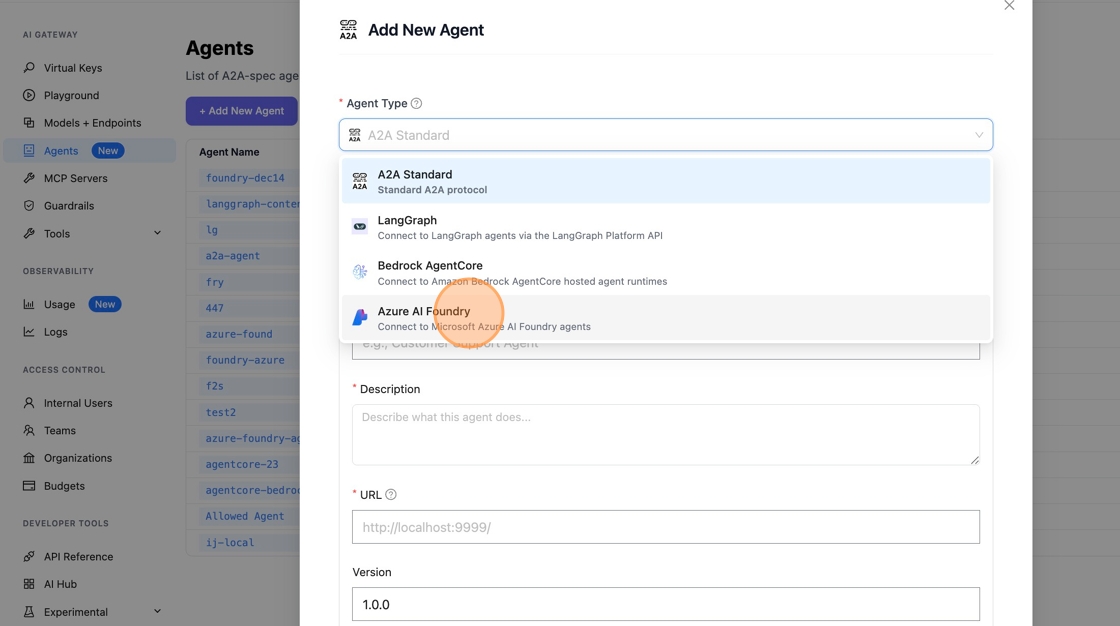
2. Select Azure AI Foundry Agent Type
Click "A2A Standard" to see available agent types, then select "Azure AI Foundry".

3. Configure the Agent
Fill in the following fields:
Agent Name
Enter a friendly agent name - callers will see this name as the agent available.

Agent ID
Get the Agent ID from your Azure AI Foundry portal:
- Go to https://ai.azure.com/ and click "Agents"
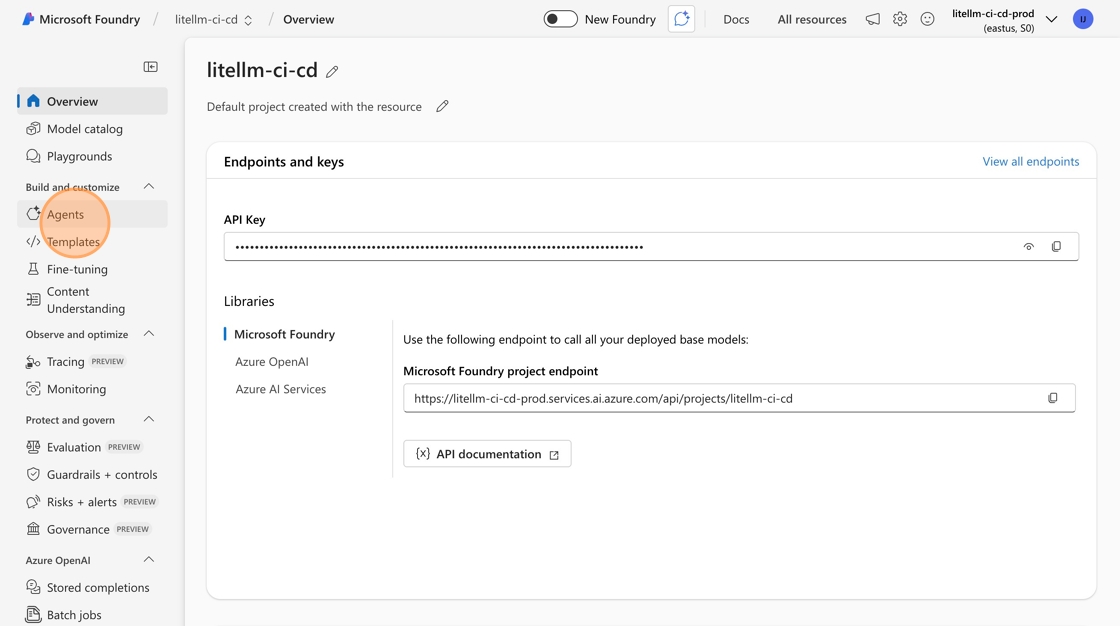
- Copy the "ID" of the agent you want to add (e.g.,
asst_hbnoK9BOCcHhC3lC4MDroVGG)

- Paste the Agent ID in LiteLLM - this tells LiteLLM which agent to invoke on Azure Foundry

Azure AI API Base
Get your API base URL from Azure AI Foundry:
- Go to https://ai.azure.com/ and click "Overview"
- Under libraries, select Microsoft Foundry
- Get your endpoint - it should look like
https://<domain>.services.ai.azure.com/api/projects/<project-name>
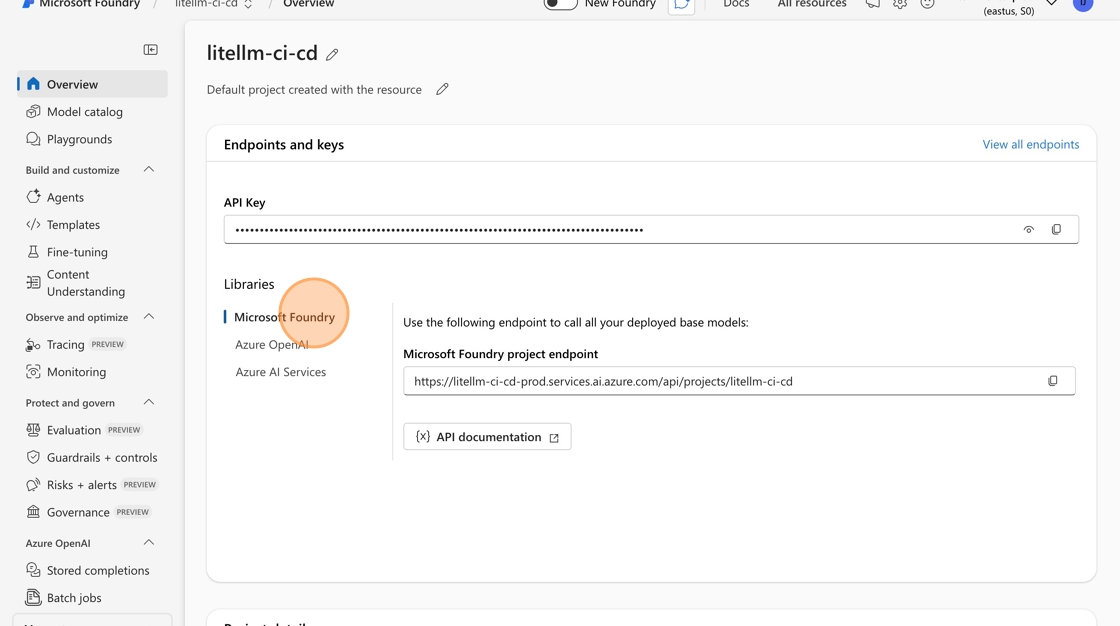
- Paste the URL in LiteLLM

Authentication
Add your Azure AD credentials for authentication:
- Azure Tenant ID
- Azure Client ID
- Azure Client Secret
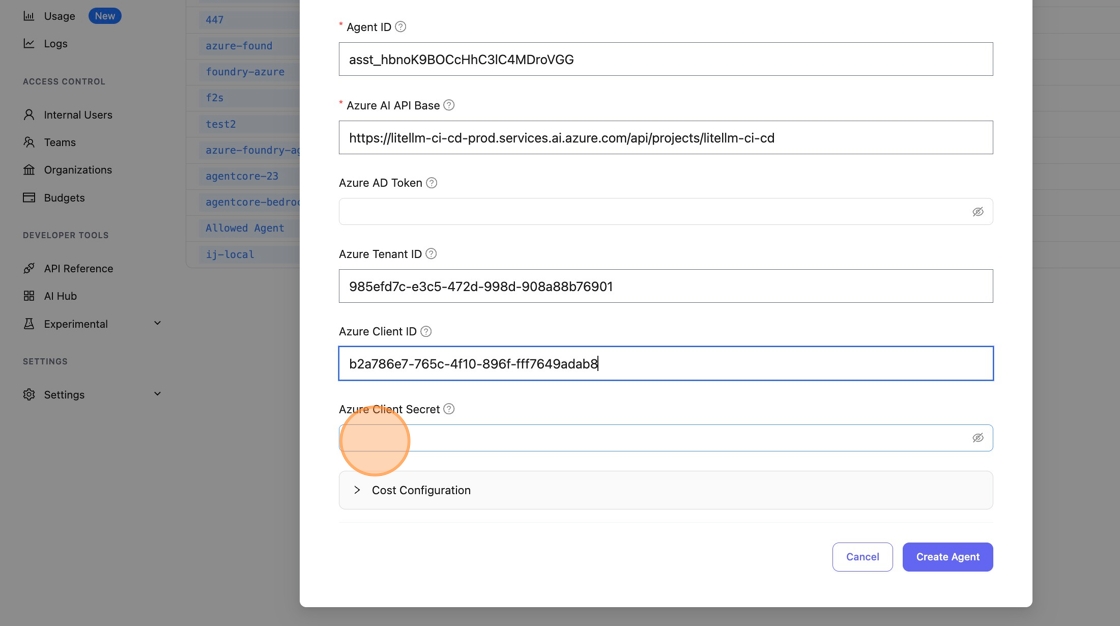
Click "Create Agent" to save.

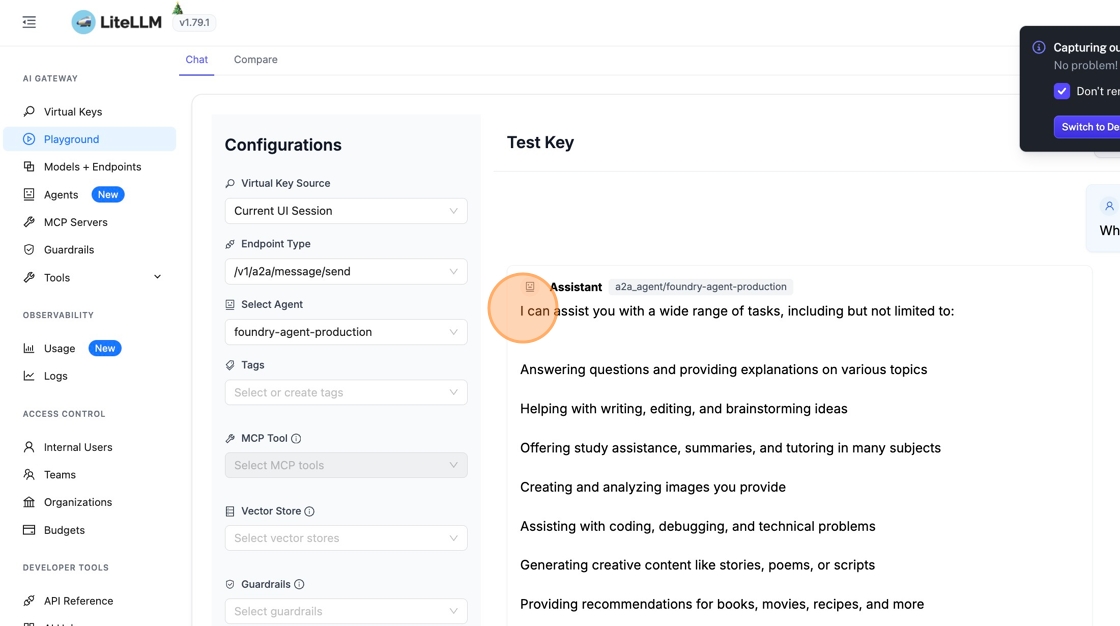
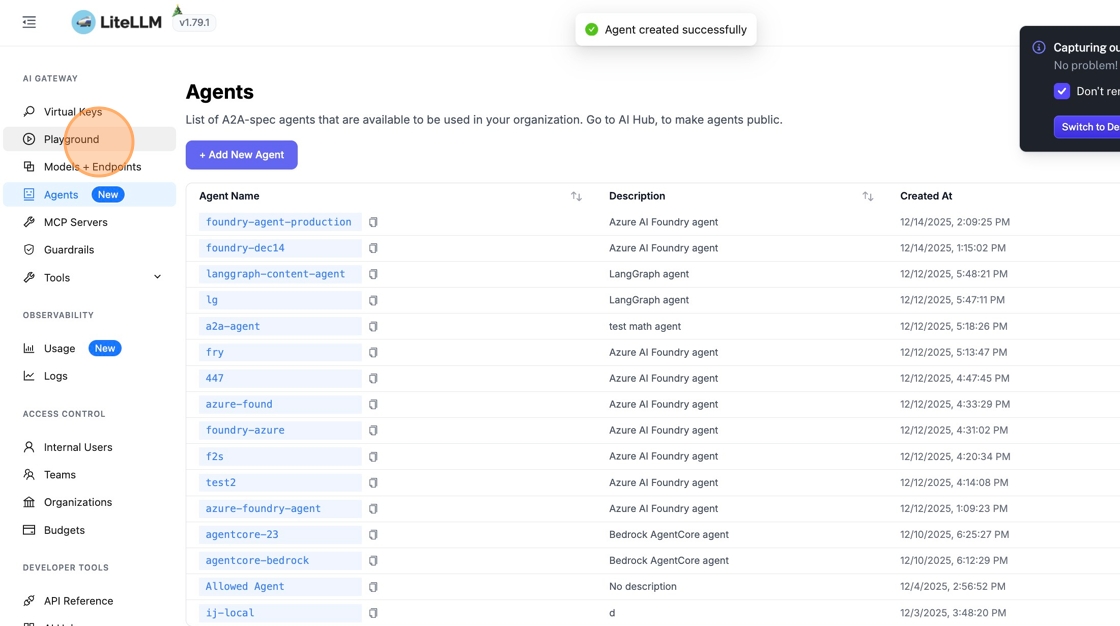
4. Test in Playground
Go to "Playground" in the sidebar to test your agent.
Change the endpoint type to /v1/a2a/message/send.
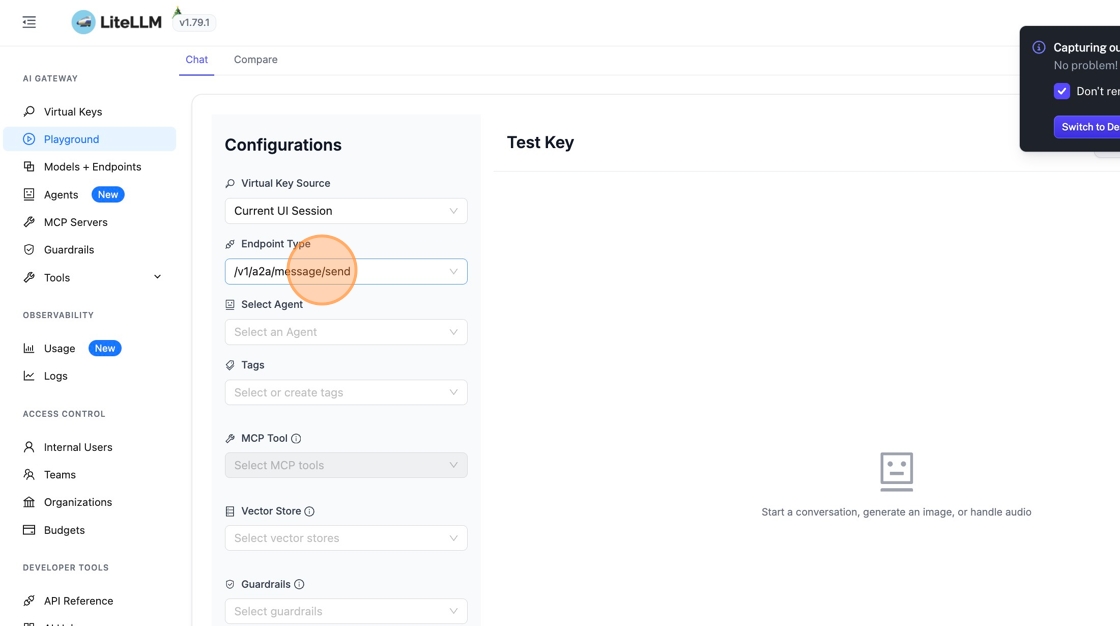
5. Select Your Agent and Send a Message
Pick your Azure AI Foundry agent from the dropdown and send a test message.
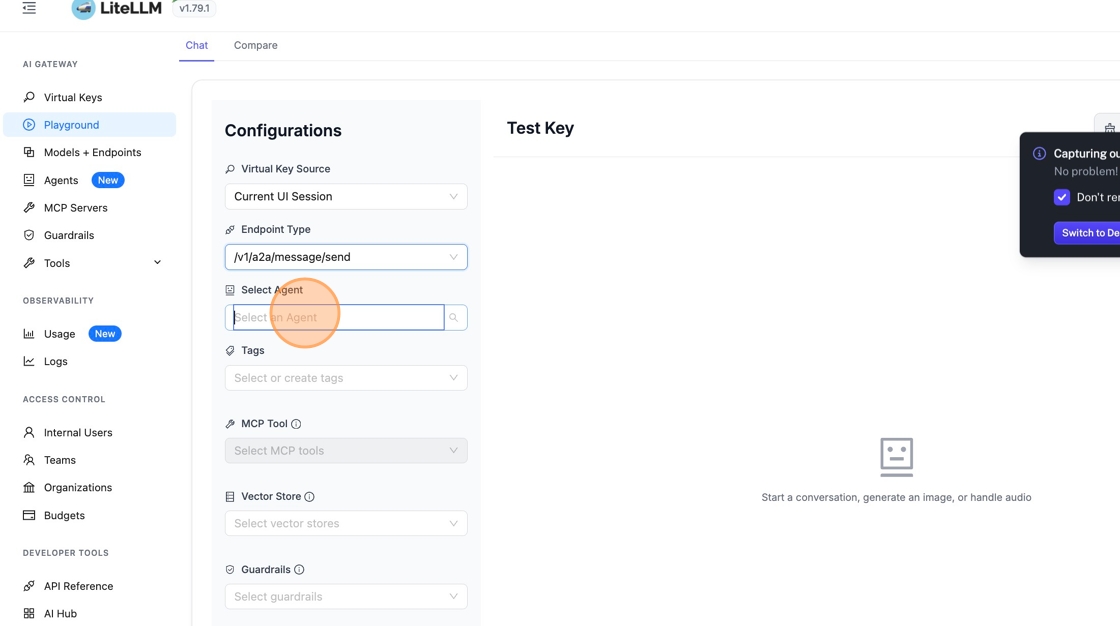
The agent responds with its capabilities. You can now interact with your Azure AI Foundry agent through the A2A protocol.