OpenAI Codex
This guide walks you through connecting OpenAI Codex to haimaker. Using haimaker with Codex allows teams to:
- Access 100+ LLMs through the Codex interface
- Use powerful models like Gemini through a familiar interface
- Track spend and usage with haimaker's built-in analytics
- Control model access with virtual keys
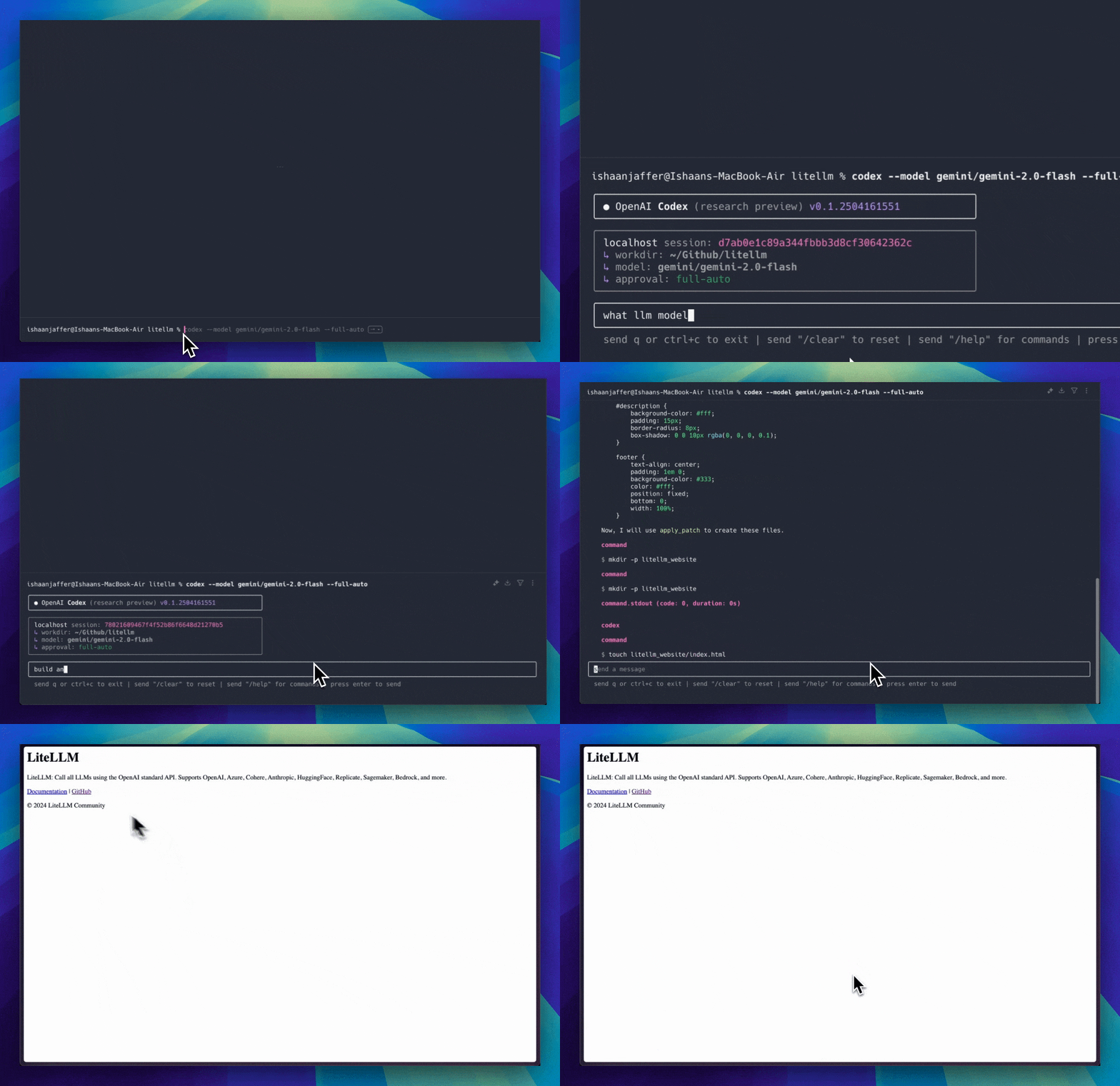
Quickstart
Requires haimaker v1.66.3.dev5 and higher
Make sure to set up haimaker with the haimaker Getting Started Guide.
1. Install OpenAI Codex
Install the OpenAI Codex CLI tool globally using npm:
- npm
- yarn
npm i -g @openai/codex
yarn global add @openai/codex
2. Start haimaker Proxy
- Docker
- haimaker CLI
docker run \
    -v $(pwd)/litellm_config.yaml:/app/config.yaml \
    -p 4000:4000 \
    docker.litellm.ai/berriai/litellm:main-latest \
    --config /app/config.yaml
litellm --config /path/to/config.yaml
haimaker should now be running on http://localhost:4000
3. Configure haimaker for Model Routing
Ensure your haimaker Proxy is properly configured to route to your desired models. Create a litellm_config.yaml file with the following content:
model_list:
  - model_name: o3-mini
    litellm_params:
      model: openai/o3-mini
      api_key: os.environ/OPENAI_API_KEY
  - model_name: claude-3-7-sonnet-latest
    litellm_params:
      model: anthropic/claude-3-7-sonnet-latest
      api_key: os.environ/ANTHROPIC_API_KEY
  - model_name: gemini-2.0-flash
    litellm_params:
      model: gemini/gemini-2.0-flash
      api_key: os.environ/GEMINI_API_KEY

litellm_settings:
  drop_params: true
This configuration enables routing to specific OpenAI, Anthropic, and Gemini models with explicit names.
4. Configure Codex to Use haimaker Proxy
Set the required environment variables to point Codex to your haimaker Proxy:
# Point to your haimaker Proxy server
export OPENAI_BASE_URL=http://0.0.0.0:4000

# Use your haimaker API key (if you've set up authentication)
export OPENAI_API_KEY="sk-1234"
5. Run Codex with Gemini
With everything configured, you can now run Codex with Gemini:
codex --model gemini-2.0-flash --full-auto
The --full-auto flag allows Codex to automatically generate code without additional prompting.
6. Advanced Options
Using Different Models
You can use any model configured in your haimaker proxy:
# Use Claude models
codex --model claude-3-7-sonnet-latest

# Use Google AI Studio Gemini models
codex --model gemini/gemini-2.0-flash
Troubleshooting
- If you encounter connection issues, ensure your haimaker Proxy is running and accessible at the specified URL
- Verify your haimaker API key is valid if you're using authentication
- Check that your model routing configuration is correct
- For model-specific errors, ensure the model is properly configured in your haimaker setup